

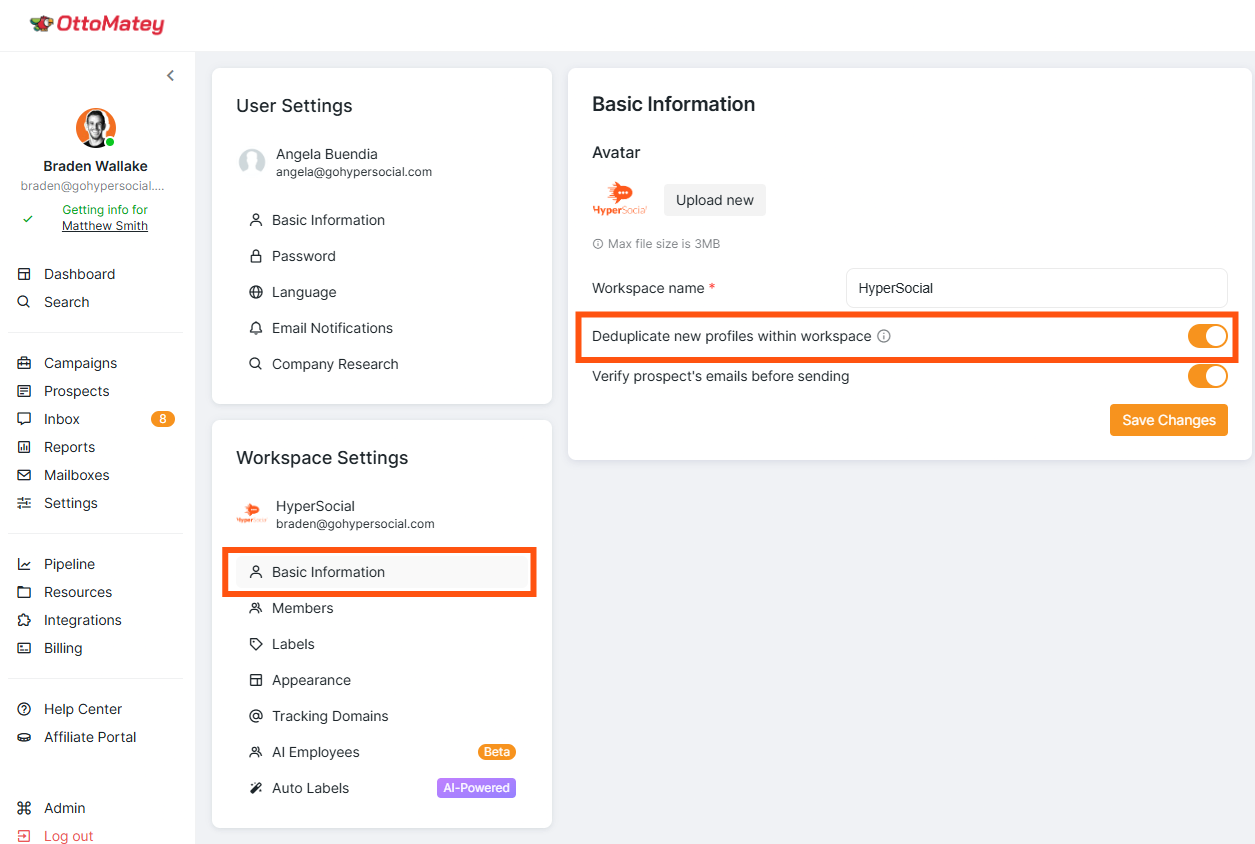
The Deduplicate new profiles within workspace setting prevents duplicate entries of a prospect across campaigns in the workspace.
When this setting is enabled, a prospect added to a campaign by one account within the workspace cannot be added to campaigns by other accounts. This ensures that prospects are not targeted multiple times by different accounts within the same workspace.
However, it’s essential to understand how this interacts with the Blacklist settings.
Important: When deduplication is enabled and you attempt to upload prospects via CSV who already exist in other campaigns within the workspace, those prospects will not be added to the new campaign unless you enable the Add prospects from existing campaigns toggle in your campaign settings. This applies even to manual CSV uploads—the deduplication setting takes precedence. This is particularly important when prospects already exist in campaigns under other accounts within the workspace, as they will not be imported even if you're using a different account. Additionally, even when deduplication is disabled, prospects that already exist in other campaigns, including archived campaigns, within the workspace will not be added to new campaigns by default.
To intentionally add these prospects to a new campaign, you can use the Add Prospects from Existing Campaigns toggle in your campaign settings:
Open your campaign settings.
Locate the Add Prospects from Existing Campaigns toggle.
Enable the toggle before saving your campaign.
Re-upload your CSV file, ensuring the LinkedIn field is mapped correctly.
Save the campaign to move the prospects from their existing campaign to the new one.
Each Social Account in the workspace maintains its own separate Blacklist. When you use the Exclude from Campaigns option from either the Inbox or Prospects tab, the selected prospect is excluded from all campaigns associated with that specific Social Account.
In practical terms, using the Exclude from Campaigns function is equivalent to adding a prospect to that Social Account's Blacklist.
To exclude a prospect from all Social Accounts within a workspace, you must add them to the Blacklist of each Social Account individually, as there is no universal Blacklist that spans across all Social Accounts.
Interaction Between Deduplication and the Blacklist
However, the deduplication setting works across the entire workspace, taking into account all profiles, including those blacklisted by any Social Account. This means that if deduplication is enabled and a prospect is blacklisted by one Social Account, that prospect is automatically prevented from being added to campaigns under any other Social Account within the workspace.
How to Enable Deduplication
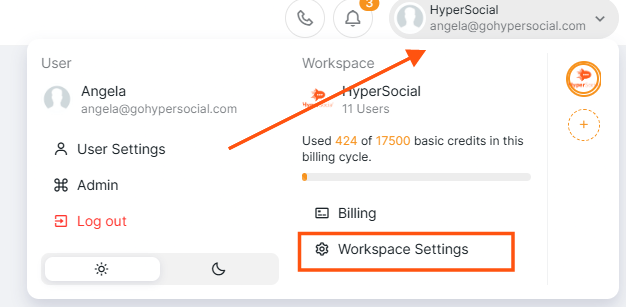
To enable the setting, go to your Workspace Settings.
From there, click on Basic Information under Workspace Settings, find the Deduplicate new profiles within workspace setting and toggle it on, then click Save Changes.
Troubleshooting CSV Imports with Deduplication Enabled
If you're importing a CSV file and fewer prospects than expected are being added to your campaign, the deduplication setting may be preventing the import. When deduplication is enabled, prospects who already exist in campaigns under other accounts within the workspace will not be imported.
Note: Disabling deduplication will allow the same prospects to be added to campaigns across multiple accounts in your workspace. Consider whether this aligns with your targeting strategy before proceeding.
By effectively managing both the deduplication and the Blacklist settings, you ensure a streamlined approach to prospect engagement within your workspace. This prevents unnecessary overlap and maintains clear boundaries across campaigns, enhancing both efficiency and communication.
Make sure to regularly review these settings to align with your targeting strategy and organizational goals.