

To securely connect your Social Account to OttoMatey and minimize interruptions, use cookies. This makes OttoMatey act reliably on your behalf, ensuring a seamless login even if the connection drops. It also simplifies the process by removing the need for a PIN, saving time and effort.
Important: Treat your cookies like a password. Do not share them publicly or store them in unsecured places.
NOTE: You can only access your Social cookies if you have an active Social session on your device. Otherwise, the cookies will be unavailable.
There are two main ways to obtain your cookies:
1. Using a browser extension (recommended)
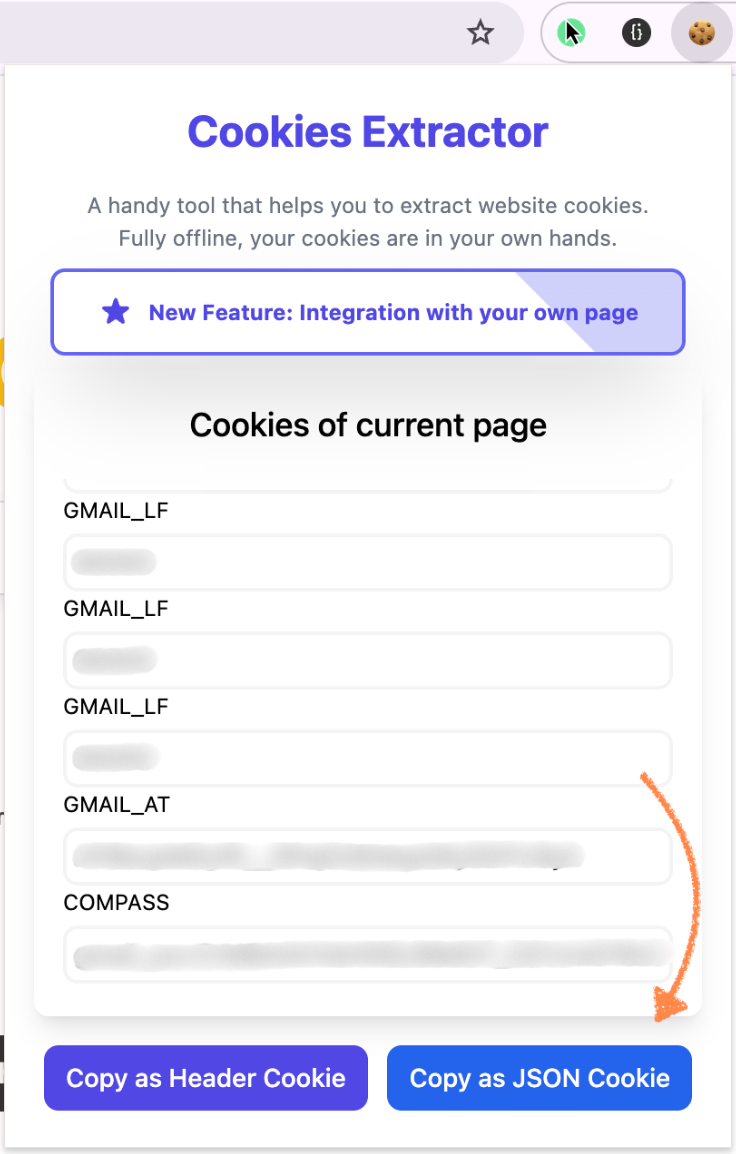
You can install a cookie extractor extension, such as this one, in your browser.
Then:
Open your Social feed page
In the extension, click “Copy as JSON Cookie”:
3. Paste the copied code into the field at step 3 of connecting a new Social Account. Make sure to click Use Cookies to Connect Account > Extension to see the field:
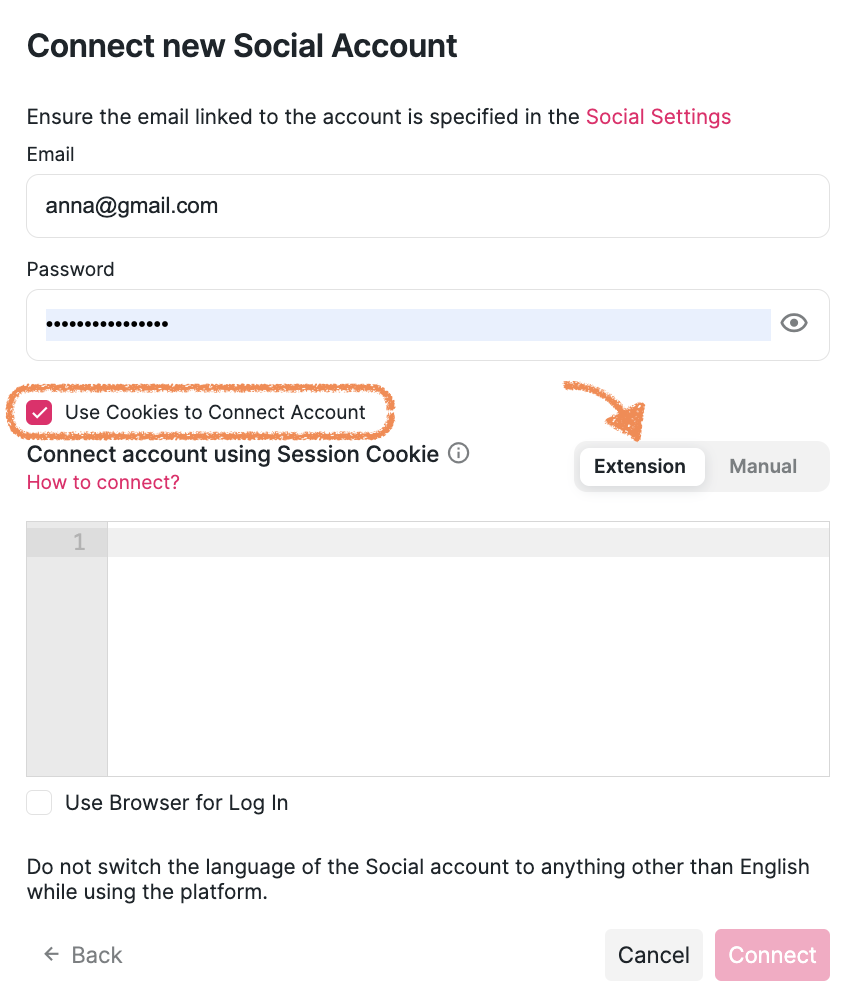
4. ❗ Don’t forget to enter both your email and password from your Social Account.
5. After you've filled it out, click Connect.
2. Using DevTools in your browser (Manual)
If you prefer not to use an extension, you can extract cookies manually. To do so, you will first need to choose the manual method by clicking Use Cookies to Connect Account > Manual when first connecting your account:
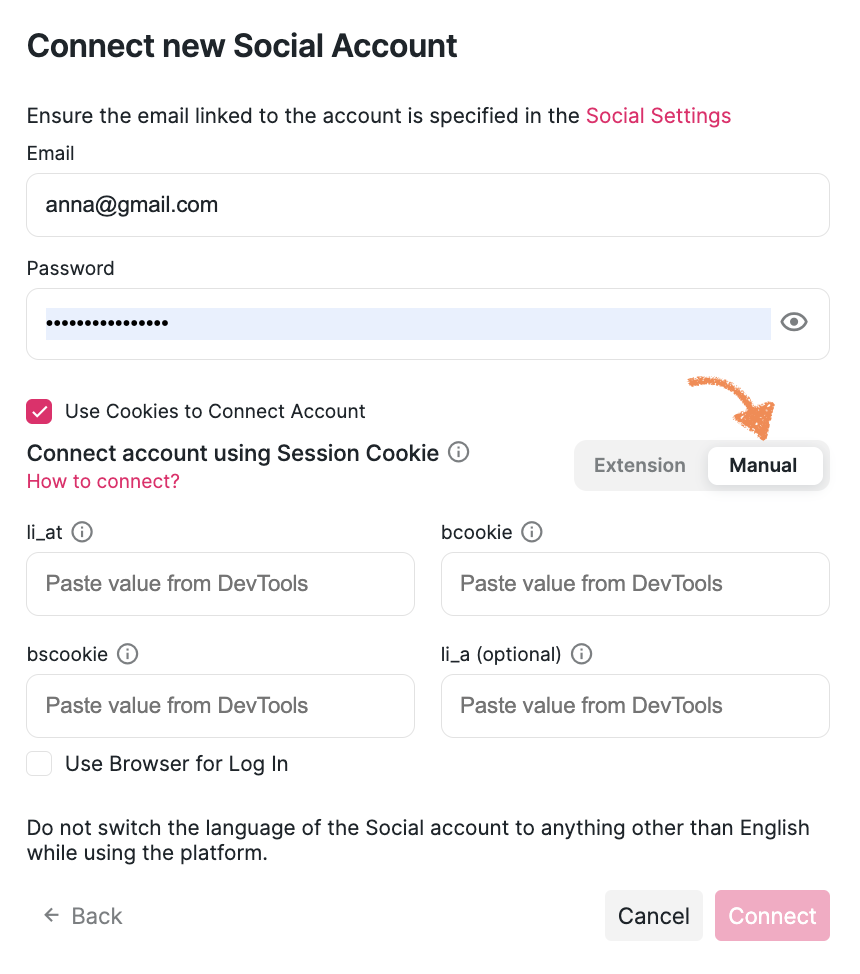
You will see 4 input fields. To fill them in, follow these steps:
Open the Social Platform, log in to the account you want to connect, and go to the Feed page.
Open Developer Tools in your browser:
for Mac: Command+Option+I or F12;
for Windows: Control+Shift+I or F12;
Alternatively, you can right-click anywhere on the page and select "Inspect".
3. Go to the Application tab.

4. Find the “Cookies” folder in the “Storage” section on the right.
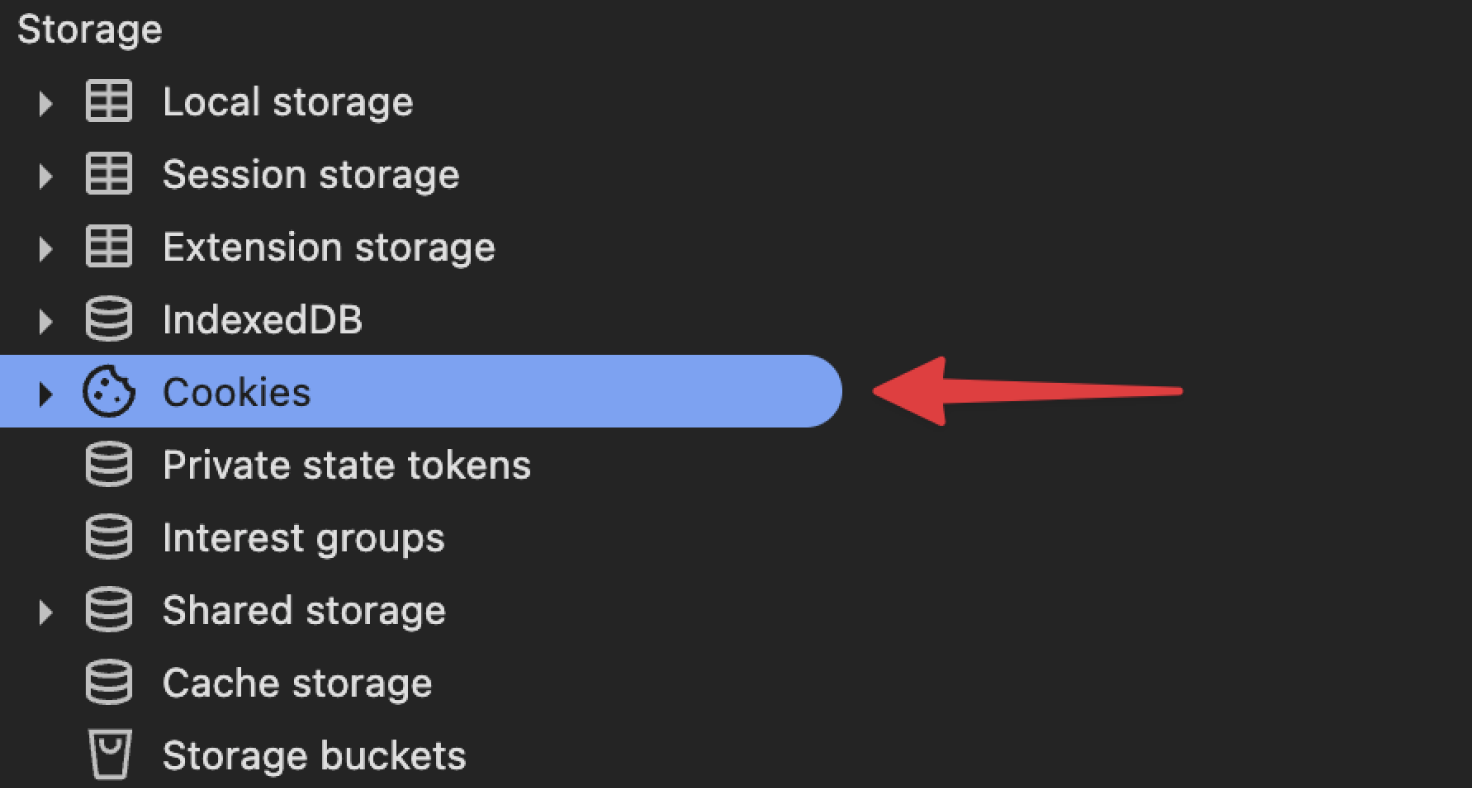
4. Expand the “Cookies” folder and find the cookies named li_at, bcookie, bscookie.
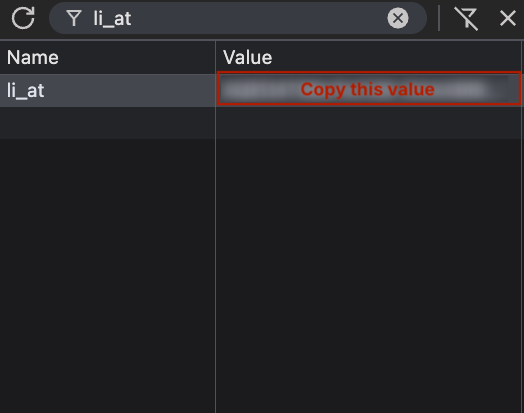
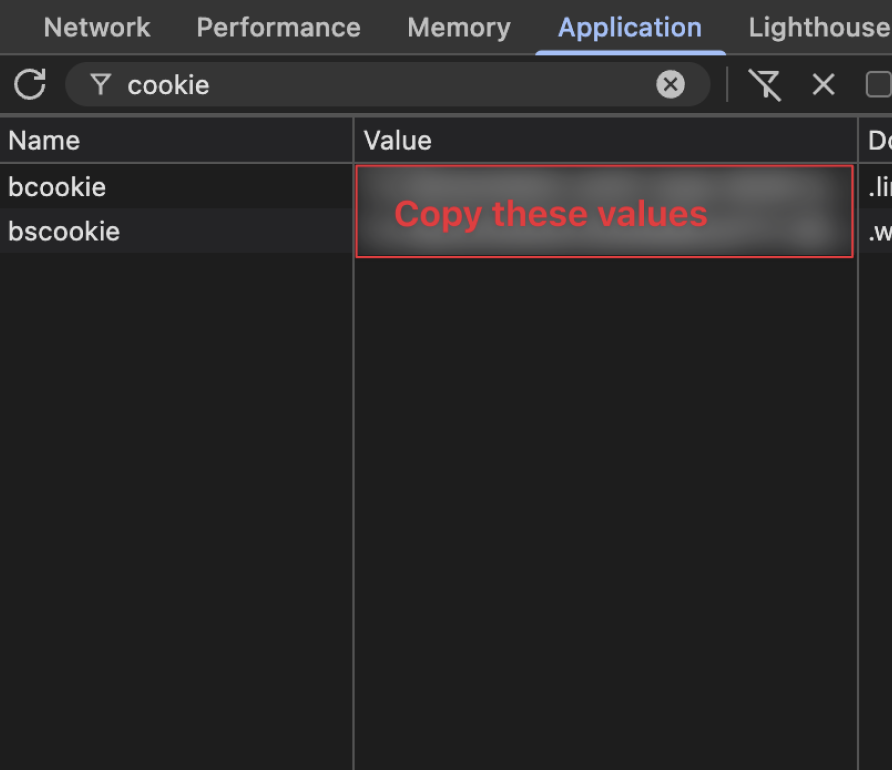
5. Copy them one by one and paste them into the respective fields in Buzz.
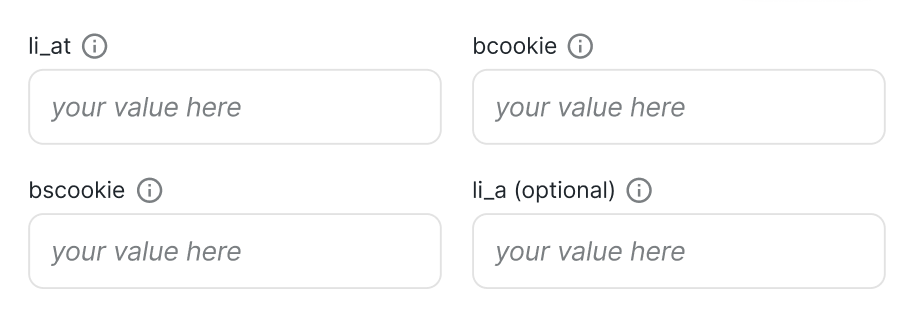
Note: If you have a Social Sales Navigator or Recruiter account, repeat this process with the li_a cookie (so that you have both li_a and li_at).
6. ❗ Make sure you enter both your email and password from your Social Account before clicking Connect.
7. Click Connect.
If you need to update cookies for an account that's already connected to Buzz, for example, when encountering unsupported 2FA methods on Sales Navigator, follow these steps:
LinkedIn Recruiter device limitation
When using a LinkedIn Recruiter account with Buzz, avoid logging in to your Recruiter account from another device while a search is running in Buzz. Doing so can log you out of the connected session and stop the search, requiring you to restart it.
To prevent workflow interruptions:
Keep your Recruiter account logged in only on the device where Buzz is running searches.
If you need to access LinkedIn from another device, use a different LinkedIn account or wait until your Buzz search completes.
Consider using LinkedIn's mobile app for quick checks instead of logging in to the web version on another device.
This limitation is specific to Recruiter accounts because of LinkedIn's session management for premium features.
Go to Settings in Buzz.
Open Account Settings.
Under LinkedIn Accounts, click Manage.
Select Manual.
Follow the instructions above to locate the required cookie data (li_at, bcookie, bscookie, and li_a if applicable) and add it to the modal window.
Click Update and wait for the session to sync.
Important: Treat your cookies like a password. Do not share them publicly or store them in unsecured places.
Have questions or trouble connecting your Social Account with cookies? Our Customer Support team is here to help — don’t hesitate to reach out!