

Beyond campaigns and limits, OttoMatey gives you advanced controls for timing, targeting, and connection hygiene. These settings ensure your outreach stays relevant, compliant, and well-organized.
This article covers Account Location, Blacklist, and Pending Connections.
Account Location
In Account Location, you can manage:
Time zone
System operating hours
Proxy configuration
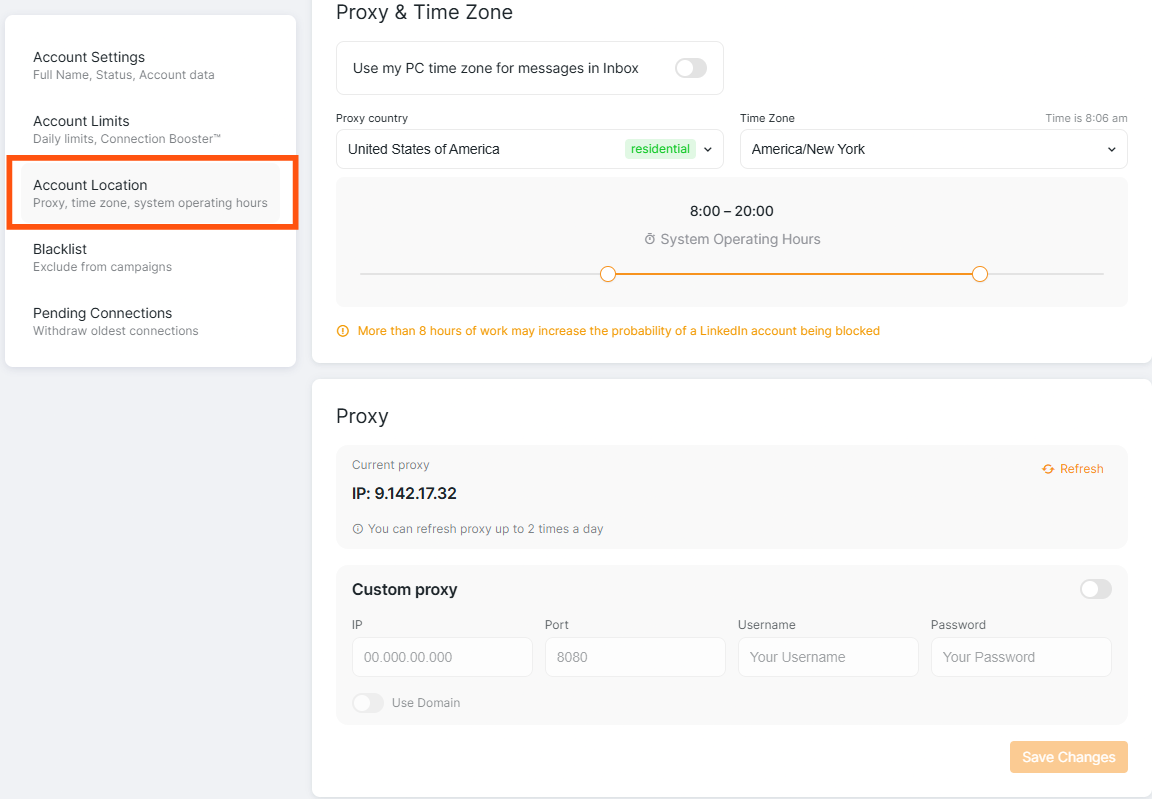
You can select a proxy country from the list or set a custom proxy to match your requirements.
Blacklist Settings
The Blacklist feature lets you exclude specific keywords from campaign searches. This helps prevent irrelevant or duplicate profiles from entering your campaigns.
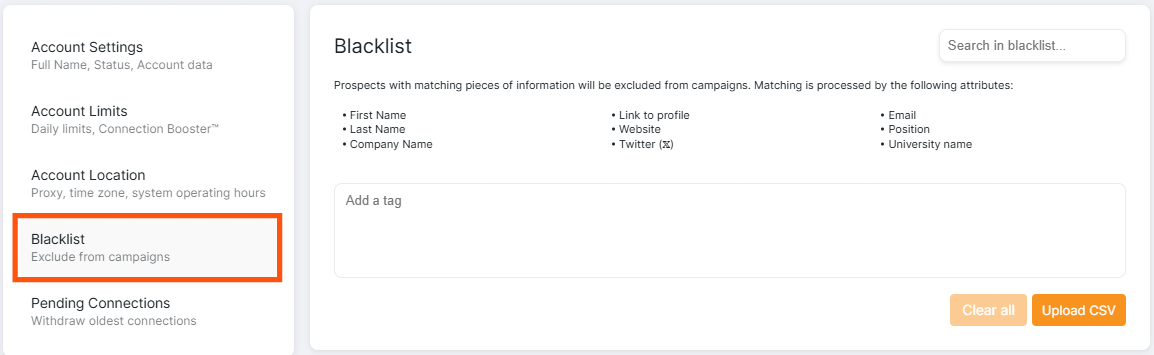
You can:
Enter keywords manually
Upload a CSV file
OttoMatey applies these exclusions automatically based on supported profile attributes.
For advanced use cases — including profile deduplication — refer to the dedicated Blacklist guide.
Pending Connections
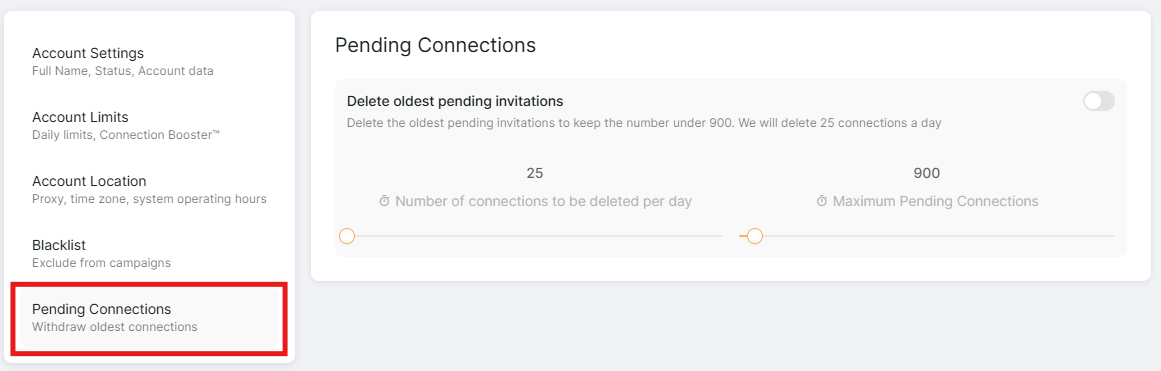
In Pending Connections, you can:
Set how many of the oldest pending requests should be removed
Limit the total number of pending connections
Withdraw specific individual requests directly in LinkedIn by going to
My Network → Invitations → See all → Sent
Note: OttoMatey only withdraws requests that are older than two weeks, starting with the oldest requests from the last three pages. Due to this age requirement, the daily deletion limit may not always be reached.
When a request is withdrawn, the prospect moves to the NEW section with the notification Connect with this profile was withdrawn.
Note: During the 3-week waiting period after withdrawal, prospects will be in a "waiting" status and cannot have connection requests sent to them, even if they appear in the NEW section. This is a LinkedIn safeguard against excessive invitation activity. The system will automatically retry sending the connection request once the waiting period expires.
🔁 Connection requests are automatically resent three weeks after the original withdrawal date without requiring manual action.
To re-add a withdrawn prospect after the 3-week period, you can:
Upload them via CSV: Campaign → Add Search → CSV File → Add CSV File → map fields → Save
Rerun existing searches if the prospect originated from one: Campaign (⋯) → Rerun Searches
These advanced settings help you stay in control as your outreach scales. By managing timing, exclusions, and connection cleanup, you ensure OttoMatey runs cleanly and efficiently behind the scenes.