
AI Employees rely on Calendly to book meetings. In this article, we’ll walk through integration, syncing behavior, common issues, and best practices.
Once you have reached the final set of the AI Employee setup, you can set up your Calendly Integration to book meetings with your prospects.
If you don't have Calendly connected yet, click Connect and follow the instructions on the screen:
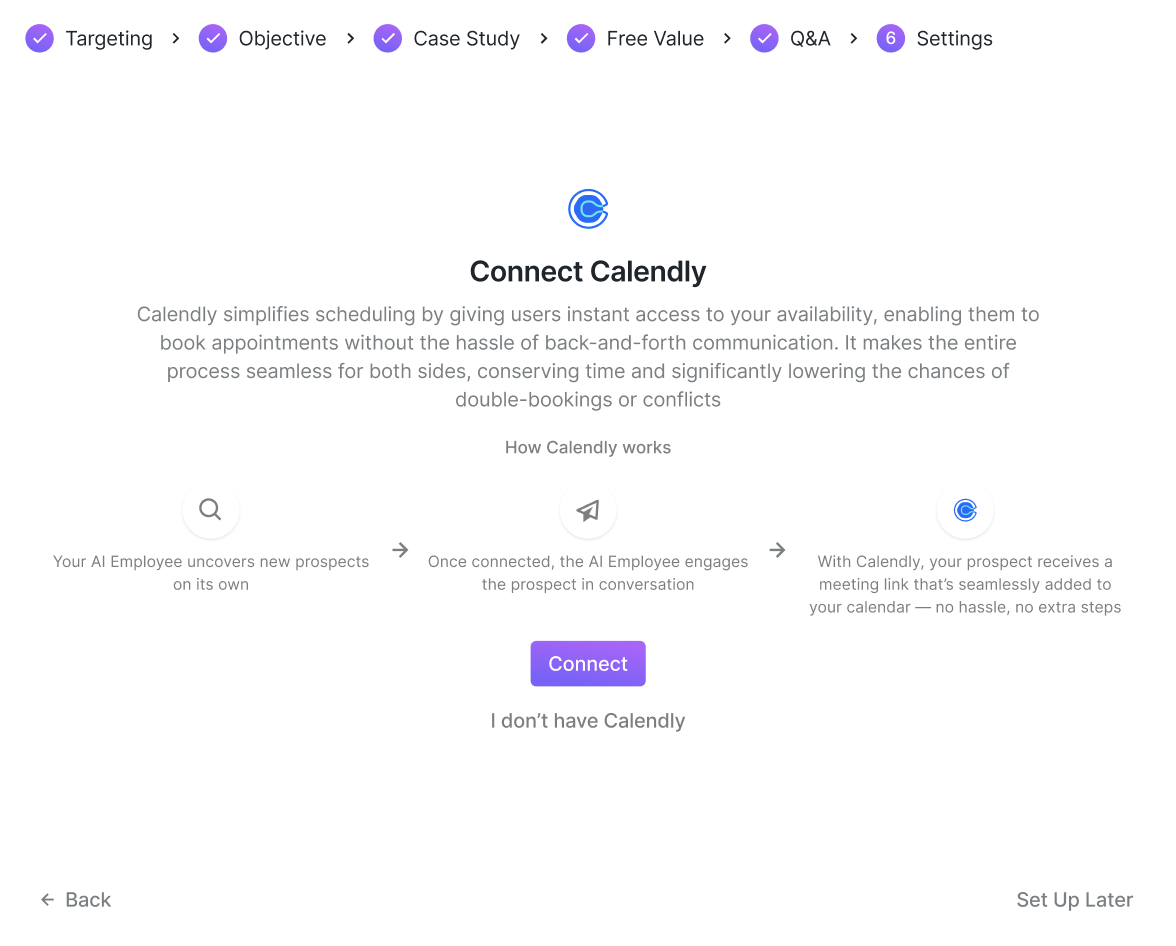
When integrating Calendly with OttoMatey to use the AI Employee feature, it's important to understand how event types are synced. OttoMatey does not continuously refresh your Calendly event types in real time; some delay is normal.
Important: Calendly connection is required to save your AI Employee configuration. If you click Set Up Later without connecting Calendly, your AI Employee will be saved as a draft in Workspace Settings > AI Employees, but any subsequent edits cannot be saved until you connect Calendly. Attempting to save changes without Calendly connected will result in save failures.
Recommended Setup Flow
To ensure your Calendly event types are properly synced with OttoMatey, follow this order:
Create your Calendly account
Set up your desired event types in Calendly
Connect your Calendly account to OttoMatey
By following this sequence, OttoMatey can quickly fetch and display your event types during the initial connection.
Common Issue to Avoid
Sometimes users connect Calendly to OttoMatey before creating any event types. When that happens:
OttoMatey connects successfully
No event types are available to fetch
Your AI Employee can't be saved without an event type
New event types created afterward won’t appear right away
In this case, OttoMatey will eventually pick them up, but it may take some time.
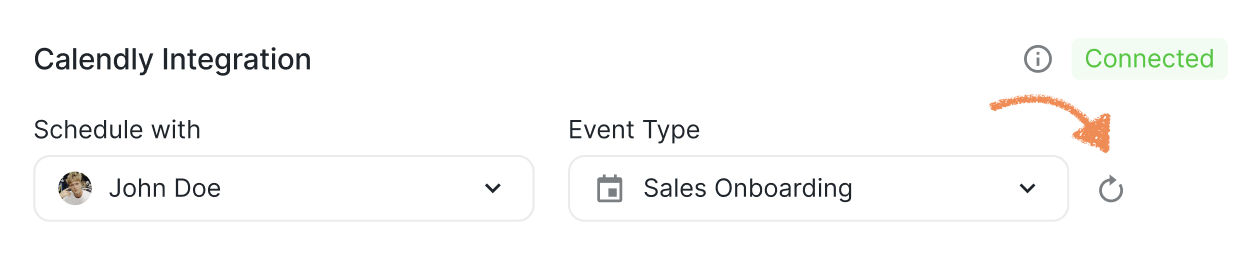
If you change the Calendly user or have just added new event types to your Calendly, you can click the Refresh button next to the event types to quickly update them:
Best Practice
To avoid delays, always set up your Calendly event types before connecting to OttoMatey. This ensures your event types sync correctly and are available when setting up AI Employee.
You can also check out this article to learn more about Calendly Intergation.
Once You Have Connected Your Calendly
If you or any user on your workspace have Calendly connected, you can customize how your AI Employee should use it to chat with prospects and schedule meetings:
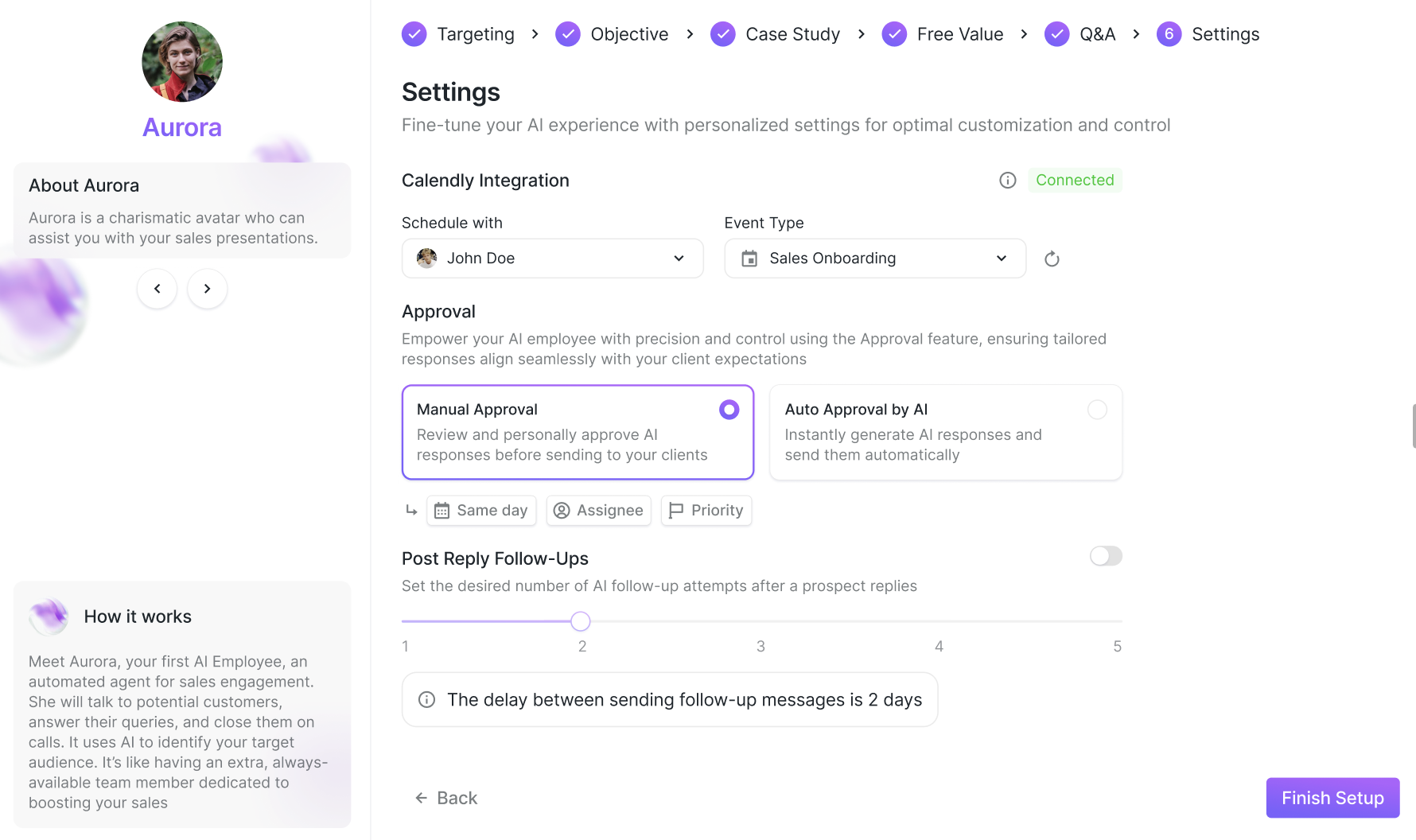
Under Users, choose the user sending invitations.
Under Event Type, select the meeting type. You can customize the meeting types in your Calendly account.
In Approval, choose the type of approval:
With Manual Approval, you will have the option to approve messages, set delivery time, assign users, and prioritize tasks:

With Automatic, your AI Employee handles communication independently.
Customize the number of follow-up messages by toggling the setting.

Click Finish Update to save your settings.
You have successfully set up your AI Employee, and it’s now ready to be used in your campaigns.